ラベル 基本編 の投稿を表示しています。 すべての投稿を表示

2011年10月6日木曜日

タイトルバーを消す方法

Chapter11にしようかと思いましたが、あまりにも簡単だし、汎用的な内容でもあるので、ChapterではなくTips扱いにします。

Sample03プロジェクトで、コスメマネージャーのトップページを作るというのを題材に扱おうとしていますが、トップページは、アプリによりますが、タイトルバーを消したりする場合があります。コスメマネージャーはトップにロゴがあるので、タイトルバーを消しています。

そこで、タイトルバーを消す方法です。
サンプル画面を見てみましょう。

タイトルバーを消すのは、レイアウトのXMLファイルからではできません。できるのはAndroidManifest.xmlファイルで、です。
AndroidManifest.xmlファイルは、Androidで使うAPIについて定義したり、使う画面用Javaファイルの定義をしたり、アプリのバージョン情報を書いたりする設定ファイルです。

アプリで統一したいテーマを定義する場合はapplicationタグでテーマ属性を定義しますが、
画面(Activity)毎にテーマを設定することも可能です。
画面Aではタイトルバーを表示したいが、画面Bでは消したいということもありますから、今回の例ではActivity単位で消してみます。


コードレビュー

ではレイアウトのコードを見てみましょう。 Sample03プロジェクトの/AndroidManifest.xmlを開いてください。
<?xml version="1.0" encoding="utf-8"?>
<manifest
    xmlns:android="http://schemas.android.com/apk/res/android"
    package="com.okolabo.android.sample03"
    android:versionCode="1"
    android:versionName="1.0">
    <uses-sdk android:minSdkVersion="7" />
    <application
        android:icon="@drawable/icon"
        android:label="@string/app_name">
        <activity
            android:name=".SampleActivity"
            android:label="@string/app_name"
            android:theme="@android:style/Theme.NoTitleBar">
            <intent-filter>
                <action android:name="android.intent.action.MAIN" />
                <category android:name="android.intent.category.LAUNCHER" />
            </intent-filter>
        </activity>
        <activity
            android:name=".Chapter11Activity"
            android:theme="@android:style/Theme.NoTitleBar" />
        <activity
            android:name=".Chapter12Activity"
            android:theme="@android:style/Theme.NoTitleBar" />
        <activity
            android:name=".Chapter13Activity"
            android:theme="@android:style/Theme.NoTitleBar" />
        <activity
            android:name=".Chapter14Activity"
            android:theme="@android:style/Theme.NoTitleBar" />
    </application>
</manifest>
最初のactivityタグのandroid:theme属性で、androidがデフォルトで持っているテーマを呼び出しています。android:themeを何も指定しない場合、

@android:style/Theme

が適用されます。今回はタイトルバーを消したかったので、

@android:style/Theme.NoTitleBar

を指定しています。また、タイトルバーだけでなく、ステータスバーも消してフルスクリーンにしたい場合は、

@android:style/Theme.NoTitleBar.FullScreen

を指定します。黒めのテーマを使う場合は@android:style/Theme.Black系を、白めのテーマを使う場合は、@android:style/Theme.Light系を使います。基本の背景色や、メニューボタンを押して出てくるメニューの色などが変わるので、プレーンな感じでいい場合は好きなほうをテーマとして選びましょう(デフォルトは黒系)

なお、ここでは詳しくは解説しませんが、テーマは継承できます。わかりやすくいうと、デフォルトのCSSを使って、気に入らないところだけ自分で上書きして新しいテーマを作ることができるということです。1から全部書かなくてもよいですし、全部自分で書くとAndroidアプリケーションとして他アプリとしての統一性がなくなるので、基本的にはテーマを継承して新しいテーマを定義したほうがよいでしょう。

2011年10月4日火曜日

Chapter10: 単位について(dp, sp, px)

今回はAndroidの単位についてです。
Webデザイナーの方は普段は単位はpxのみ気にしておけば、ほぼ大丈夫かと思いますが(印刷物はdpi気にしますが)Androidの場合は違います。

理由は、端末によって解像度が違うためですね。
日本のAndroidで主流の解像度は以下の通りです。
  • 800x480(hdpi)
  • 854x480(hdpi)
  • 960x640(hdpi)
また、主流ではないですが、以下の解像度の端末もあります。
  • 480x320(mdpi)
  • 320x240(ldpi)
これだけあると、それぞれ専用のレイアウトを準備しないといけなさそうです。実際、準備する場合もあります。マルチスクリーンに関しては、別の機会に書こうと思います。今はシンプルに単位だけに注目します。

Android Developersのサイトに、Supporting Multiple Screensという項目があります。まさに別の機会にとさっき書いたばかりの項目ですが、そこに、単位についても書いてあります。

  • dp(dip: density-independent pixel)
  • sp(scaled pixel)
  • px(pixel)
dp(dip)は、解像度に依存しないpixelです。
解像度に合わせて自動的にpixel変換が行われます。

hdpiの端末は、240dpiです。

240 / 160(基準値) = 1.5px = 1dp

という計算になります。画面上で1.5pxは描けませんが、1dpは描けます。

mdpiの端末は、160dpiです。

160 / 160(基準値) = 1px = 1dp

という計算になります。

これを、px換算の解像度に当てはめると、

800x480(hdpi)の端末だと、533dp x 320dpでした。
480x320(mdpi)の端末だと、480dp x 320dpでした。

なんとdp上だと、横の長さが320dpで一致しましたね。

以下、800x480(hdpi)の端末です。
次は480x320(mdip)の端末(エミュレータ)です。

16dpと書いている文字の大きさはどちらも同じですが、16pxと書いている文字の大きさは明らかに違います。特に、480x320の画面では、16dpも16pxも同じ大きさです。しかし、800x480の画面では違います。16dpの文字の大きさはpxに換算すると16dp x 1.5 = 24px の文字になるからです。

しかし、画面の幅自体は、どちらの端末も320dpです。画面の縦横比が違うので、ちょっと見づらいかもしれませんが、端末自体の大きさ(解像度でなく)が同じならば、文字のサイズは同じはずです。

dpを使えば、画面の解像度を意識する回数が減ります。dpを使っておけば、新しい解像度の端末が出ても、なんとなくちゃんと表示されて動いてくれるということも期待できます(モヤッとした言い回しですが)。

spという単位もありますが、spは文字の解像度設定に倣うという単位なので、基本的にレイアウトにではなく、フォントサイズ指定に使います。フォントサイズ指定ではdpではなくspを使いましょう。

コードレビュー

ではレイアウトのコードを見てみましょう。 Sample02プロジェクトの/res/layout/chapter10.xmlを開いてください。
<?xml version="1.0" encoding="utf-8"?>
<LinearLayout
    xmlns:android="http://schemas.android.com/apk/res/android"
    android:layout_width="fill_parent"
    android:layout_height="fill_parent"
    android:orientation="vertical">
    <!-- 
        dp(dip)は、解像度に合わせてpxが変化する単位です。
        端末の解像度(dpi)に応じて、大きさが変化します。
        基本的にdp(dip)を使ってレイアウトを定義していきます。
        sp(scaled pixels)は主にフォント用の単位です。
        pxで定義する機会は、ほとんどないと言えますが意識する必要はあります。
     -->
    <!-- 普通はtextSizeにはdpは使いませんが、サンプルとして使ってます -->
    <TextView
        android:text="@string/chapter10_dp"
        android:textSize="16dp"
        android:layout_width="wrap_content"
        android:layout_height="wrap_content" />
    <!-- 普通はtextSizeにはspを使うのでこっちのが正解 -->
    <TextView
        android:text="@string/chapter10_sp"
        android:textSize="16sp"
        android:layout_width="wrap_content"
        android:layout_height="wrap_content" />
    <!-- 敢えてpxで指定してみた例。160dpi端末と240dpi端末で比較するといいです -->
    <TextView
        android:text="@string/chapter10_px"
        android:textSize="16px"
        android:layout_width="wrap_content"
        android:layout_height="wrap_content" />
    <TextView
        android:text="@string/chapter10_description"
        android:textSize="16sp"
        android:layout_width="wrap_content"
        android:layout_height="wrap_content" />
</LinearLayout>
textSizeに、各単位(16dp, 16sp, 16px)を指定しています。 解像度の違う端末で見てみると違いがわかりやすいです。なかなか準備できないので、エミュレータで比較してみるのがよいでしょう。

Chapter09: marginとpaddingについて

今回はmarginとpaddingについてです。
marginとpaddingについては、感覚的にはCSSと同じです。ただ、border領域がありません。borderは別途background属性でdrawable(画像もしくは描画を表すxml)指定で表現することになります。

  • padding・・・要素から青枠までの領域(background属性が適用される範囲)
  • margin・・・青枠から赤枠までの領域

marginは他要素からの距離になるので、Root要素(一番最初に定義されるLayoutなりView
なり)にmarginを定義しても、あまり意味がありません(定義できるけど動作が変?)。

marginを定義するのは、何かしらの子要素に対してのみ、行いましょう。


では、サンプルを見てみましょう。
Sample02アプリを起動して、メニューを押してchapter09を選んでください。
以下のような画面になります。
LinearLayoutのhorizontalを3つ準備して

  • marginのみ設定
  • paddingのみ設定
  • marginとpaddingの両方設定

を作ってみました。background属性がわかりやすいように、色を付けています。
パッと見た感じ、わかりにくいので、ちょっと解説用に矢印をつけたバージョンが以下です。
marginのみでTop, Leftなどを別々に指定みてみたところ、marginのみではその通りに反映されました。

ところが、paddingのみで指定したところ、marginのときのようにはなりませんでした。ベースラインがpaddingTopの高いほうに合わせられました。オレンジ枠の部分はmarginでもpaddingでもありません。

marginとpaddingの両方を指定したところ、思った通りの結果ですが、ベースラインはpaddingに合わせられ、marginも反映されました。


コードレビュー

ではレイアウトのコードを見てみましょう。 Sample02プロジェクトの/res/layout/chapter09.xmlを開いてください。
<?xml version="1.0" encoding="utf-8"?>
<LinearLayout
    xmlns:android="http://schemas.android.com/apk/res/android"
    android:layout_width="fill_parent"
    android:layout_height="fill_parent"
    android:orientation="vertical">
    <!-- 
        marginを指定する場合は、layout_marginを使います。
        個別に設定する場合は、
        layout_marginTop,
        layout_marginBottom,
        layout_marginRight,
        layout_marginLeft
        です。
        
        paddingを指定する場合は、paddingを使います。
        個別に設定する場合は、
        paddingTop,
        paddingBottom,
        paddingRight,
        paddingLeft
        です。
        
        CSSのブロック要素と同じく、コンテンツの周囲がpaddingで
        paddingの外側がmarginです。
        marginは、周囲の要素に対して有効なため、
        Root要素(ここでは2行目で定義しているLinearLayout)でmarginを
        定義しても有効ではありません。定義はできますが、動作が不確定ぽいです。
        Root以下の子要素で定義してください。
     -->
    <TextView
        android:text="@string/chapter09_margin"
        android:layout_width="wrap_content"
        android:layout_height="wrap_content" />
    <!-- marginのみ設定 -->
    <LinearLayout
        android:layout_width="fill_parent"
        android:layout_height="wrap_content"
        android:orientation="horizontal">
        <TextView
            android:text="@string/app_name"
            android:layout_width="wrap_content"
            android:layout_height="wrap_content"
            android:layout_marginTop="10dp"
            android:layout_marginLeft="20dp"
            android:background="#008000" />
        <TextView
            android:text="@string/app_name"
            android:layout_width="wrap_content"
            android:layout_height="wrap_content"
            android:layout_marginTop="40dp"
            android:layout_marginLeft="20dp"
            android:background="#4b0082" />
    </LinearLayout>
    <!--
        paddingのみ設定
        より大きな数値でpaddingが設定されている要素にベースラインが合ってしまうようです。
     -->
    <TextView
        android:text="@string/chapter09_padding"
        android:layout_width="wrap_content"
        android:layout_height="wrap_content" />
    <LinearLayout
        android:layout_width="fill_parent"
        android:layout_height="wrap_content"
        android:orientation="horizontal">
        <TextView
            android:text="@string/app_name"
            android:layout_width="wrap_content"
            android:layout_height="wrap_content"
            android:paddingTop="10dp"
            android:paddingLeft="20dp"
            android:paddingBottom="10dp"
            android:paddingRight="20dp"
            android:background="#008000" />
        <TextView
            android:text="@string/app_name"
            android:layout_width="wrap_content"
            android:layout_height="wrap_content"
            android:paddingTop="40dp"
            android:paddingLeft="20dp"
            android:paddingBottom="20dp"
            android:paddingRight="40dp"
            android:background="#4b0082" />
    </LinearLayout>
    <TextView
        android:text="@string/chapter09_margin_padding"
        android:layout_width="wrap_content"
        android:layout_height="wrap_content" />
    <!-- marginとpaddingを設定 -->
    <LinearLayout
        android:layout_width="fill_parent"
        android:layout_height="wrap_content"
        android:orientation="horizontal">
        <TextView
            android:text="@string/app_name"
            android:layout_width="wrap_content"
            android:layout_height="wrap_content"
            android:layout_margin="10dp"
            android:paddingTop="10dp"
            android:paddingLeft="20dp"
            android:paddingBottom="10dp"
            android:paddingRight="20dp"
            android:background="#008000" />
        <TextView
            android:text="@string/app_name"
            android:layout_width="wrap_content"
            android:layout_height="wrap_content"
            android:layout_margin="10dp"
            android:paddingTop="40dp"
            android:paddingLeft="20dp"
            android:paddingBottom="20dp"
            android:paddingRight="40dp"
            android:background="#4b0082" />
    </LinearLayout>
</LinearLayout>
marginは以下のようにして指定します。
  • layout_margin・・・上下左右すべて同じ値を指定したい場合
  • layout_marginTop・・・上のみ指定
  • layout_marginBottom・・・下のみ指定
  • layout_marginLeft・・・左のみ指定
  • layout_marginRight・・・右のみ指定
marginの場合、layout_という接頭辞が付きます。個別に設定する機会のほうが多いかと思います。これはCSSのmarginの指定と同じですね。

paddingは以下のようにして設定します。
  • padding・・・上下左右すべて同じ値を指定したい場合
  • paddingTop・・・上のみ指定
  • paddingBottom・・・下のみ指定
  • paddingLeft・・・左のみ指定
  • paddingRight・・・右のみ指定
paddingの場合はpaddingなんちゃらです。これもCSSのpaddingと同じような設定なので、特に違和感ないと思います。

「いやいや!marginとpaddingの概念はわかったけども、そこに指定する値はどうやって算出するのさ!そもそもdpって何よ!?」って思ってる人が多いと思います。
なので、次はAndroidのレイアウトにおける単位を取り扱います。

Chapter08: Viewを重ねる

今回は「Viewを重ねる」です。
Viewを重ねるというのは、画像の上に文字を表示したりする場合などが考えられます。私がよく使っている方法ですが、RelativeLayoutの下にImageViewとTextViewを入れ、margin, paddingをいじって場所決めをして重ねています(margin, paddingについてはChapter09で取り上げます)。

LinearLayoutでは基本的にViewが重なり合うということはないので、RelativeLayoutを使います。


では、サンプルを見てみましょう。
 Sample02アプリを起動して、メニューを押してchapter08を選んでください。
以下のような画面になります。
Chapter07とどこが違うねん!という感じですが、よく見ると、右上にSample02の文字があります。
Sample02という文字列はlayout_alignParentRight=trueが指定されています。これで親要素のRelativeLayoutに対して右寄せの位置に表示されます。しかしバリスタの画像のサイズが ちょっと小さかったので、重なってないように見えたので、ついでだからlayout_margin指定をして画像の上にもってきてみました。

親要素に対して相対的に配置すれば、View同士を重ねることができるわけです。


コードレビュー

ではレイアウトのコードを見てみましょう。 Sample02プロジェクトの/res/layout/chapter08.xmlを開いてください。
<?xml version="1.0" encoding="utf-8"?>
<RelativeLayout
    xmlns:android="http://schemas.android.com/apk/res/android"
    android:layout_width="fill_parent"
    android:layout_height="fill_parent">
    <!-- 
        親要素(RelativeLayout)に対して、子要素を相対的に配置します。
        親要素に対して相対的に配置すれば、Viewを重ねることができます。
        今回はTextViewをRelativeLayoutに対して右寄せにして、
        layout_margin***を指定することで、ImageViewの上に重ねました。
     -->
    <ImageView
        android:src="@drawable/barista"
        android:layout_width="wrap_content"
        android:layout_height="wrap_content"
        android:layout_centerInParent="true"
        android:scaleType="fitCenter"
        android:adjustViewBounds="true" />
    <TextView
        android:text="@string/app_name"
        android:layout_width="wrap_content"
        android:layout_height="wrap_content"
        android:layout_alignParentRight="true"
        android:layout_marginTop="40dp"
        android:layout_marginRight="40dp" />
</RelativeLayout>
TextViewに、layout_alignParentRight=trueを指定して、親要素のRelativeLayoutに対して右寄せにしています(23行目)。
その後、24行目、25行目でmarginの指定を行っています。親要素のRelativeLayoutからのマージンになっています。重ねるだけならば、そこまで難しいことはありません。複雑なレイアウトも、分解していけばこのレイアウトのような形で、RelativeLayout内で重ねるなどが多いんじゃないかなと思います(あくまで自分の経験の中でですが)

Chapter07: 画像を中央表示する

さて、Sample02プロジェクトを開始します。
まだインポートをしていない方は、「Sample02プロジェクトを公開しました」より、Eclipseへのインポートをお願いします。 今回は、レイアウトの中央に画像を表示する方法です。 まぁこれも、ぴんとくる人はくると思いますが、RelativeLayoutのlayout_centerInParentを使います。 Chapter02で使っている、中央に文字を表示していたやつです。

では、サンプルを見てみましょう。
Sample02アプリを起動してください。
以下のような画面になります。
画像はネスカフェのバリスタです。
Androidで画像を扱う場合は、ImageViewを使います(ゲームなどでは、SurfaceView)。普段はImageViewを使うと思っていて大丈夫です。

コードレビュー

ではレイアウトのコードを見てみましょう。 Sample02プロジェクトの/res/layout/chapter07.xmlを開いてください。
<?xml version="1.0" encoding="utf-8"?>
<RelativeLayout
    xmlns:android="http://schemas.android.com/apk/res/android"
    android:layout_width="fill_parent"
    android:layout_height="fill_parent">
    <!-- 
        layout_centerInParent=trueにしているので、
        画像が領域の中央に配置されます。
        ImageViewのscaleTypeをfitCenterにすることで、
        領域に合わせて自動でリサイズされます。
        scaleTypeは色々あるので、時間があれば他の値も試してみましょう。
        また、解像度の大きい画像を使うとメモリを消費しやすくてアプリが
        強制終了しやすくなります。
        なるべく画面の解像度に近いサイズにしましょう。
     -->
    <ImageView 
        android:src="@drawable/barista"
        android:layout_width="wrap_content"
        android:layout_height="wrap_content"
        android:layout_centerInParent="true"
        android:scaleType="fitCenter"
        android:adjustViewBounds="true"
    />
</RelativeLayout>
RelativeLayoutが親要素です。その子要素のImageViewに、layout_centerInParentを指定しています(20行目)。

21行目で、scaleTypeという指定を行っています。fitCenterにしておくと、大きな画像の場合、表示領域の大きさ(layout_width, layout_height)に自動的に縮小されます。このscaleTypeもまた色々種類があるのですが、ほぼfitCenterしか使わないんじゃないかと思うので説明は省略します。

22行目のadjustViewBoundsは、描画の縦横比を維持するかどうかです。ImageViewのlayout_width, layout_heightの値が画像の縦横比の影響を受けて変化する、という認識なのですが、違うかもしれません(汗。レイアウトを静的に作るときには、trueにしておけばいいと思っています。

 外部リンクになりますが、Android Wiki UIコンポーネント / ImageView を見たら参考になります。

 スマートフォンはメモリが少ないですし、アプリ毎にメモリ割り当て上限が決まっているので、サイズの大きな画像を読み込ませるとOut Of Memoryという例外が発生してアプリが落ちます。なるべく、端末の解像度に近い画像を準備するようにしましょう(マルチ解像度については別のところで取り上げるのでそれまで待っててください)。

2011年10月3日月曜日

Sample02プロジェクトを公開しました

前回までで、Sample01のプロジェクトの内容が終わりました。
次のプロジェクトを準備してあるので、Sample02プロジェクトをダウンロードしてインポートしてください。やり方は、Eclipseでプロジェクトをインポートする(zipのまま)です。ダウンロードするURLの部分だけ、読み替えてください。よろしくお願いします。

Sample02プロジェクトへのリンク(github)

Sample02プロジェクトで取り扱う内容は、以下の通りです。

  • (Chapter07)画像を中央配置する(Chapter07)
  • (Chapter08)Viewを重ねて表示する
  • (Chapter09)margin, paddingについて
  • (Chapter10)Androidでの単位について(dp, sp, pxなど)

Chapter06: フッターを作る方法

今回はフッターを作る方法です。
サイトを作っていても、全画面表示でフッターを一番下に表示する方法など、結構面倒ですが、Androidのレイアウトではそんなに難しいことではありません。方法はまぁ色々とありますが、感のいい人ならひょっとしたら気づいているかもしれません。

今回は、layout_weightを使います。

layout_weightといえば、Chapter03とChapter04で使いましたね。

では、サンプルを見てみましょう。
サンプルアプリでメニューを押して、chapter06を選択してください。
以下のような画面になります。
フッター側に特別な指定を行うのではなく、上のViewにlayout_weight属性をつけます。

コードレビュー

ではレイアウトのコードを見てみましょう。
Sample01プロジェクトの/res/layout/chapter06.xmlを開いてください。
<?xml version="1.0" encoding="utf-8"?>
<LinearLayout
    xmlns:android="http://schemas.android.com/apk/res/android"
    android:orientation="vertical"
    android:layout_width="fill_parent"
    android:layout_height="fill_parent">
    <ScrollView
        android:layout_width="fill_parent"
        android:layout_height="0dp"
        android:layout_weight="1">
        >
        <LinearLayout
            android:orientation="vertical"
            android:layout_width="fill_parent"
            android:layout_height="fill_parent">
            <TextView
                android:text="@string/chapter06_long_text"
                android:layout_width="fill_parent"
                android:layout_height="fill_parent" />
        </LinearLayout>
    </ScrollView>
    <LinearLayout
        android:orientation="vertical"
        android:layout_width="fill_parent"
        android:layout_height="wrap_content">
        <Button
            android:text="@string/chapter06_button"
            android:layout_width="fill_parent"
            android:layout_height="wrap_content" />
    </LinearLayout>
</LinearLayout>
ScrollViewにlayout_weight=1をつけています。これにより、同じ階層にあるLinearLayoutは子要素が使っている領域分(ここではボタン)のみ使用することになります。こんな感じで、フッターは簡単に実装できます。 ここでのフッターは常に画面に表示されているフッターになりますが、そうでないフッター(リストの一番下にあるフッターなど)は、またそれ用の実装方法があります。 リストのフッターの実装方法は、ListViewのFooterViewを追加するという方法でJavaでの記述が必要になるので、これ以上はここでは言及しません。 トップ画面でフッターをつけてくれと言われたら、こんな方法がある程度に覚えておいてください。

2011年10月2日日曜日

Chapter05: スクロールするViewの配置

今回はスクロールするViewについてです。
LinearLayoutの中には、いくらでも子要素を入れることができますが、画面内におさまらないくらいに子要素を追加すると、画面からはみ出たままで、画面はスクロールすることができません。

そういうときには、ScrollViewを使います。

よく見かけるリスト化されたView(ListView)や、グリッド表示のView(GridView)は、もともとスクロールするための機能を内包しているので、この処理は必要ありません。長いフォームなどの場合や、長い文章を読ませたい場合などに使うとよいでしょう。

画面をスクロールさせるためのViewですが、2種類あります。

  • ScrollView(縦方向のスクロールを担当)
  • HorizontalScrollView(横方向のスクロールを担当)

ScrollViewという名前だと縦横のどちらも使えそうで、縦方向のスクロールViewがVerticalScrollViewとかじゃないのが、何故かという話がちょろっとネットで話題になってたこともありました。ちょっと横道にそれてしまいましたが、HorizontalScrollViewはボタンの配置とかで使うことがあるので、横方向の場合は違う!ということくらいは覚えておきましょう。

では、サンプルを見てみましょう。
サンプルアプリでメニューを押して、chapter05を選択してください。
以下のような画面なります。
ここぞとばかりにTextViewをコピーしまくってみました。下のほうが薄らグラデーションがかかってるのがわかりますでしょうか?続きがあるよというのを見た目的にわかるようにするため、ScrollViewにはそのような機能があります。この範囲の長さなども変更可能です(ここでは取り上げない)

コードレビュー

では、レイアウトのソースコードを見てみましょう。Sample01プロジェクトの/res/layout/chapter05.xmlを開いてください。
<?xml version="1.0" encoding="utf-8"?>
<ScrollView
    xmlns:android="http://schemas.android.com/apk/res/android"
    android:orientation="vertical"
    android:layout_width="fill_parent"
    android:layout_height="fill_parent">
    <!-- 
        この例のように、レイアウトに必ずViewが入ってなければいけないわけではありません。
        縦方向のスクロールが欲しい場合は、ScrollViewを使います。
        横方向のスクロールが欲しい場合は、HorizontalScrollViewを使います。
        今回は、ScrollViewのサンプルです。
        ScrollViewは、直近の子要素として、1つのViewしか受け付けません。
        ですので、ScrollViewの下には、LinearLayoutなどを配置し、
        その下にスクロールされるであろう要素を並べます。
        
        また、リスト表示をする場合はListViewなどを使いますが、ListView系は
        すでにScrollViewを梱包しているので、ScrollViewの下にListViewを入れる必要は
        ありません。
        
        あくまで、長いフォームなどを作る場合などに、ScrollViewを使うとよいでしょう。
     -->
    <LinearLayout
        android:orientation="vertical"
        android:layout_width="fill_parent"
        android:layout_height="fill_parent">
        <!-- 手抜きでTextViewをたくさんコピーしています -->
        <TextView
            android:layout_width="wrap_content"
            android:layout_height="wrap_content"
            android:text="@string/chapter01_linearlayout_vertical" />
        <TextView
            android:layout_width="wrap_content"
            android:layout_height="wrap_content"
            android:text="@string/chapter01_linearlayout_vertical" />
        <TextView
            android:layout_width="wrap_content"
            android:layout_height="wrap_content"
            android:text="@string/chapter01_linearlayout_vertical" />
(長いので省略)
    </LinearLayout>
</ScrollView>
ScrollViewの子要素には、1つしか置くことができません。2つ以上の要素を置くとエラーでアプリが落ちます。スクロールバーを表示する対象が1つだけだからなのでしょう。
なので、ScrollViewの子要素にはLinearLayoutもしくはRelativeLayoutなどを配置するとよいでしょう。そのレイアウトの下にはいくらでも子要素を配置できます。

LinearLayoutの中には大量にTextViewを入れています(長いので省略していますが)。
ScrollViewを使えば、後はレイアウトの配置は同じなので、特に困ることはないと思います。しかし、ScrollViewの中にScrollViewを入れたりするとよくわからない感じになることがあるので、そういう使い方はなるべく避けましょう。

最後がアバウトな書き方になってすみません!

2011年10月1日土曜日

Chapter04: 縦方向に均等配置

前回は、横方向に均等配置でした。今回は、縦方向に均等配置です。
内容はどう違うの?という話ですが、ほぼ同じです。
なので、今回はサラッと流します。

注目すべき点は、同じくlayout_weightです。

では、サンプルを見てみましょう。
サンプルアプリで、メニューを押して、chapter04を選択してください。
以下のような画面になります。
この画面は、LinearLayoutで横方向配置を指定した後に、さらにLinearLayoutを3つ入れて、それぞれは縦方向配置の設定をしています。
layout_weightは、レイアウトの重みづけで、高ければ高いほど重要度が増すとChapter03で説明しました。このレイアウトも、Chapter03の縦版なので、同様の設定になっています。


コードレビュー

では、レイアウトのソースコードを見てみましょう。Sample01プロジェクトの/res/layout/chapter04.xmlを開いてください。
<?xml version="1.0" encoding="utf-8"?>
<LinearLayout
    xmlns:android="http://schemas.android.com/apk/res/android"
    android:orientation="horizontal"
    android:layout_width="fill_parent"
    android:layout_height="fill_parent">
    <!-- 
        縦方向均等配置をするため、親要素のLinearLayoutのorientationをverticalに設定します。
        ここでは、layout_weightが肝です。指定された方向に対してウェイトが重い分だけ、拡がります。 
        デフォルトは0なので、1つの要素でも1を与えるとそれが残りの領域を占拠します。
        また、均等配置する方向が横の場合、layout_widthに有効な値をいれても無駄になるので0dpを入れます。
     -->
    <!-- 均等配置
         全ての要素にlayout_weight="1"を設定 -->
    <LinearLayout
        android:orientation="vertical"
        android:layout_width="wrap_content"
        android:layout_height="fill_parent">
        <Button
            android:id="@+id/button1"
            android:layout_width="wrap_content"
            android:layout_height="0dp"
            android:layout_weight="1"
            android:text="@string/chapter04_button1" />
        <Button
            android:id="@+id/button2"
            android:layout_width="wrap_content"
            android:layout_height="0dp"
            android:layout_weight="1"
            android:text="@string/chapter04_button2" />
        <Button
            android:id="@+id/button3"
            android:layout_width="wrap_content"
            android:layout_height="0dp"
            android:layout_weight="1"
            android:text="@string/chapter04_button3" />
    </LinearLayout>
    <!-- 1つの要素だけlayout_weightを設定
         ただし、layout_weightが設定されてないボタンが表示されるように、
         layout_height="wrap_content"にしてます。 -->
    <LinearLayout
        android:orientation="vertical"
        android:layout_width="wrap_content"
        android:layout_height="fill_parent">
        <Button
            android:id="@+id/button4"
            android:layout_width="wrap_content"
            android:layout_height="wrap_content"
            android:text="@string/chapter04_button4" />
        <Button
            android:id="@+id/button5"
            android:layout_width="wrap_content"
            android:layout_height="wrap_content"
            android:text="@string/chapter04_button5" />
        <Button
            android:id="@+id/button6"
            android:layout_width="wrap_content"
            android:layout_height="0dp"
            android:layout_weight="1"
            android:text="@string/chapter04_button6" />
    </LinearLayout>
    <!-- 全ての要素にlayout_weightを設定
         但し、button9のみweightを2にしている -->
    <LinearLayout
        android:orientation="vertical"
        android:layout_width="wrap_content"
        android:layout_height="fill_parent">
        <Button
            android:id="@+id/button7"
            android:layout_width="wrap_content"
            android:layout_height="0dp"
            android:layout_weight="1"
            android:text="@string/chapter04_button7" />
        <Button
            android:id="@+id/button8"
            android:layout_width="wrap_content"
            android:layout_height="0dp"
            android:layout_weight="1"
            android:text="@string/chapter04_button8" />
        <Button
            android:id="@+id/button9"
            android:layout_width="wrap_content"
            android:layout_height="0dp"
            android:layout_weight="2"
            android:text="@string/chapter04_button9" />
    </LinearLayout>
</LinearLayout>
※以降、Chapter03と同じ言い回しになりますので、無視したい人は無視してください。
注目するべきは、layout_heightの値を0dpにしているところです。 layout_heightに0dp以外の有効な値を入れると、無駄に解析が入ってしまって非効率だからです。モバイル端末は基本的に非力だしバッテリー持たせる必要があるので、無駄な処理は極力削ります。それはプログラムだけでなく、レイアウトのXMLでも言えるのです。

layout_heightの効能は、LinearLayoutのorientationの方向で意味づけが決まるので、verticalの場合は、縦方向に効きます。なので、layout_height="0dp"なわけです。

均等配置がlayout_weightを指定するだけで簡単にできることがわかってもらえたかと思います。

Chapter03: 横方向に均等配置

LinearLayoutとRelativeLayoutの説明が終わりましたので、ここからはLinearLayoutを使った具体的なレイアウトの方法に入っていきます。とはいってもまだ基本編です。

アプリを使っている人はよく見かけていると思うのですが、ボタンなどの均等配置はどうやるのだろうか?と。CSSならば、もともと決まっているwidthの値を3で割って…などだと思うのですが、Androidでは、もっと簡単な方法が準備されています。

それはlayout_weightという属性です。

では、サンプルを見てみましょう。
サンプルアプリで、メニューを押して、chapter03を選択してください。
以下のような画面になります。
この画面は、LinearLayoutで縦方向配置の指定をした後に、さらにLinearLayoutを3つ入れて、それぞれは横方向配置の設定をしています。

先ほど言った、layout_weightという属性は、レイアウトの重みづけに当たります。高ければ高いほど、重要度が増します。下の画像の赤枠で囲まれている部分のように均等に配置したい場合は、layout_weight全て1にします。

他の場合も見てもらおうと思い、設定してありますが、2行目のボタンの部分は、ボタン4、ボタン5にはlayout_weightを指定していません。そして、ボタン6のみ、1を指定しています。すると、ボタン6が一番重要ということになり、残された領域全部を使います。

3行目のボタンは、全てにlayout_weightを指定していますが、ボタン9のみ、layout_weightに2を指定しています。重要度に比例して領域を確保するので、1:1:2の比率で配置されているのがわかります。


コードレビュー

では、レイアウトのソースコードを見てみましょう。 Sample01プロジェクトの/res/layout/chapter03.xmlを開いてください。
<?xml version="1.0" encoding="utf-8"?>
<LinearLayout
    xmlns:android="http://schemas.android.com/apk/res/android"
    android:orientation="vertical"
    android:layout_width="fill_parent"
    android:layout_height="fill_parent">
    <!-- 
        横方向均等配置をするため、親要素のLinearLayoutのorientationをhorizontalに設定します。
        ここでは、layout_weightが肝です。指定された方向に対してウェイトが重い分だけ、拡がります。 
        デフォルトは0なので、1つの要素でも1を与えるとそれが残りの領域を占拠します。
        また、均等配置する方向が横の場合、layout_widthに有効な値をいれても無駄になるので0dpを入れます。
     -->
    <!-- 均等配置
         全ての要素にlayout_weight="1"を設定 -->
    <LinearLayout
        android:orientation="horizontal"
        android:layout_width="fill_parent"
        android:layout_height="wrap_content">
        <Button
            android:id="@+id/button1"
            android:layout_width="0dp"
            android:layout_height="wrap_content"
            android:layout_weight="1"
            android:text="@string/chapter03_button1" />
        <Button
            android:id="@+id/button2"
            android:layout_width="0dp"
            android:layout_height="wrap_content"
            android:layout_weight="1"
            android:text="@string/chapter03_button2" />
        <Button
            android:id="@+id/button3"
            android:layout_width="0dp"
            android:layout_height="wrap_content"
            android:layout_weight="1"
            android:text="@string/chapter03_button3" />
    </LinearLayout>
    <!-- 1つの要素だけlayout_weightを設定
         ただし、layout_weightが設定されてないボタンが表示されるように、
         layout_width="wrap_content"にしてます。 -->
    <LinearLayout
        android:orientation="horizontal"
        android:layout_width="fill_parent"
        android:layout_height="wrap_content">
        <Button
            android:id="@+id/button4"
            android:layout_width="wrap_content"
            android:layout_height="wrap_content"
            android:text="@string/chapter03_button4" />
        <Button
            android:id="@+id/button5"
            android:layout_width="wrap_content"
            android:layout_height="wrap_content"
            android:text="@string/chapter03_button5" />
        <Button
            android:id="@+id/button6"
            android:layout_width="0dp"
            android:layout_height="wrap_content"
            android:layout_weight="1"
            android:text="@string/chapter03_button6" />
    </LinearLayout>
    <!-- 全ての要素にlayout_weightを設定
         但し、button9のみweightを2にしている -->
    <LinearLayout
        android:orientation="horizontal"
        android:layout_width="fill_parent"
        android:layout_height="wrap_content">
        <Button
            android:id="@+id/button7"
            android:layout_width="0dp"
            android:layout_height="wrap_content"
            android:layout_weight="1"
            android:text="@string/chapter03_button7" />
        <Button
            android:id="@+id/button8"
            android:layout_width="0dp"
            android:layout_height="wrap_content"
            android:layout_weight="1"
            android:text="@string/chapter03_button8" />
        <Button
            android:id="@+id/button9"
            android:layout_width="0dp"
            android:layout_height="wrap_content"
            android:layout_weight="2"
            android:text="@string/chapter03_button9" />
    </LinearLayout>
</LinearLayout>
注目するべきは、layout_widthの値を0dpにしているところです。dpという単位は初めて聞いたと思いますが、これはAndroidで各端末の解像度の違いを吸収するための単位です。基本的にdpを使ってレイアウトをするのですが、単位は他の記事で扱おうと思っているので、ここではこの辺で割愛します。

じゃあなんで注目やねんという話ですが、layout_widthに0dp以外の有効な値を入れると、無駄に解析が入ってしまって非効率だからです。モバイル端末は基本的に非力だしバッテリー持たせる必要があるので、無駄な処理は極力削ります。それはプログラムだけでなく、レイアウトのXMLでも言えるのです。

layout_weightの効能は、LinearLayoutのorientationの方向で意味づけが決まるので、horizontalの場合は、横方向に効きます。なので、layout_width="0dp"なわけです。

均等配置がlayout_weightを指定するだけで簡単にできることがわかってもらえたかと思います。

2011年9月30日金曜日

Chapter02: RelativeLayoutの特徴

次はRelativeLayoutの説明をします。
RelativeLayoutとは、相対レイアウト用のレイアウトです。子要素を親要素であるRelativeLayoutから相対的に配置することができます。また、子要素同士も、id指定で配置することができます。

では、サンプルを見てみましょう。
サンプルアプリで、メニューを押して、chapter02を選択してください。以下のような画面になります。
 
この画面は、RelativeLayoutの下に、各ポジションを表すTextViewを配置しています。LinearLayoutと違って、自由度が大きいことがわかるかと思います。
赤枠で囲まれているのが、親要素のRelativeLayoutに対して相対的な配置です。
青枠で囲まれているのが、子要素の「中央」というTextViewに対して相対的な配置です。

コードレビュー

では、レイアウトのソースコードを見てみましょう。
Sample01プロジェクトの/res/layout/chapter02.xmlを開いてください。

注目するべきところは、子要素であるTextViewの以下の属性です。
  • 親要素に対する配置(指定値 = true, false)
    • layout_alignParentTop・・・親要素の上部に要素を配置する
    • layout_alignParentBogttom・・・親要素の下部に要素を配置する
    • layout_alignParentLeft・・・親要素の左部に要素を配置する
    • layout_alignParentRight・・・親要素の右部に要素を配置する
    • layout_centerInParent・・・親要素の縦横の中央に要素を配置する
    • layout_centerVertical・・・親要素の縦方向の中央に要素を配置する
    • layout_centerHorizontal・・・親要素の横方向の中央に要素を配置する
  • 子要素同士に対する配置(指定値 = 要素のid)
    • layout_above・・・指定された要素の上に配置する
    • layout_below・・・指定された要素の下に配置する
    • layout_toLeftOf・・・指定された要素の左に配置する
    • layout_toRightOf・・・指定された要素の右に配置する
子要素同士で指定しているidは、中央に配置した要素@id/CenterInParentに対してです。 属性名にalignとかcenterとか出てくるので、Webデザイナーの人でも直観的にわかりやすいかなと思います。
<?xml version="1.0" encoding="utf-8"?>
<RelativeLayout
    xmlns:android="http://schemas.android.com/apk/res/android"
    android:layout_width="fill_parent"
    android:layout_height="fill_parent">
    <!-- 
        RelativeLayoutは相対レイアウトです。
        RelativeLayoutの下のウィジェット類は、親のRelativeLayoutに対して相対的に配置されます。
        ■がそれです。
        ■   ■
        
          ■
          
        ■   ■
      -->
    <!-- 親要素に対して左上に配置 -->
    <TextView
        android:id="@+id/LeftTop"
        android:layout_alignParentLeft="true"
        android:layout_alignParentTop="true"
        android:layout_width="wrap_content"
        android:layout_height="wrap_content"
        android:text="@string/chapter02_left_top" />
    <!-- 親要素に対して左下に配置 -->
    <TextView
        android:id="@+id/LeftBottom"
        android:layout_alignParentLeft="true"
        android:layout_alignParentBottom="true"
        android:layout_width="wrap_content"
        android:layout_height="wrap_content"
        android:text="@string/chapter02_left_bottom" />
    <!-- 親要素に対して右上に配置 -->
    <TextView
        android:id="@+id/RightTop"
        android:layout_alignParentRight="true"
        android:layout_alignParentTop="true"
        android:layout_width="wrap_content"
        android:layout_height="wrap_content"
        android:text="@string/chapter02_right_top" />
    <!-- 親要素に対して右下に配置 -->
    <TextView
        android:id="@+id/RightBottom"
        android:layout_alignParentRight="true"
        android:layout_alignParentBottom="true"
        android:layout_width="wrap_content"
        android:layout_height="wrap_content"
        android:text="@string/chapter02_right_bottom" />
    <!-- 親要素に対して中央に配置 -->
    <TextView
        android:id="@+id/CenterInParent"
        android:layout_centerInParent="true"
        android:layout_width="wrap_content"
        android:layout_height="wrap_content"
        android:text="@string/chapter02_center_in_parent" />
    <!-- ここから、中央の要素に対して相対配置します。□がそれです。
         ■   ■
           □
          □■□
           □
         ■   ■
     -->
    <!-- 上
        layout_aboveで指定されたIDの要素の上に配置されます。
        横方向で中央揃えするために、layout_centerHorizontalをtrueにしてます。
     -->
    <TextView
        android:id="@+id/above"
        android:layout_above="@id/CenterInParent"
        android:layout_centerHorizontal="true"
        android:layout_width="wrap_content"
        android:layout_height="wrap_content"
        android:text="@string/chapter02_above" />
    <!-- 下
        layout_belowで指定されたIDの要素の下に配置されます。
        横方向で中央揃えするために、layout_centerHorizontalをtrueにしてます。
     -->
    <TextView
        android:id="@+id/below"
        android:layout_below="@id/CenterInParent"
        android:layout_centerHorizontal="true"
        android:layout_width="wrap_content"
        android:layout_height="wrap_content"
        android:text="@string/chapter02_below" />
    <!-- 左
        layout_toLeftOfで指定されたIDの要素の左に配置されます。
        縦方向で中央揃えするために、layout_centerVerticalをtrueにしてます。
    -->
    <TextView
        android:id="@+id/toLeftOf"
        android:layout_toLeftOf="@id/CenterInParent"
        android:layout_centerVertical="true"
        android:layout_width="wrap_content"
        android:layout_height="wrap_content"
        android:text="@string/chapter02_to_left_of" />
    <!-- 右
        layout_toRightOfで指定されたIDの要素の右に配置されます。
        縦方向で中央揃えするために、layout_centerVerticalをtrueにしてます。
    -->
    <TextView
        android:id="@+id/toRightOf"
        android:layout_toRightOf="@id/CenterInParent"
        android:layout_centerVertical="true"
        android:layout_width="wrap_content"
        android:layout_height="wrap_content"
        android:text="@string/chapter02_to_right_of" />
</RelativeLayout>
RelativeLayoutが便利なところは、中央に要素を置くのが簡単なところです。画像を中央に配置するなど、layout_centerInParentを指定するだけでよいので、画像を使った表示の場合などによく使ってます。
LinearLayoutに比べると、思った通りに要素の配置が行いやすいはずです。そのかわり、XMLでの要素指定が複雑化する場合があるので、把握するのが大変になったりします。

全てをRelativeLayoutで配置するのではなく、LinearLayoutとRelativeLayoutを上手に使って配置するのがよいでしょう。

2011年9月29日木曜日

Android端末で開発中のアプリを試すための設定

レイアウトの記事を書いている途中でまた気づいたので、また別の話題になりますが、Android端末で開発中のアプリを試すための設定方法です。

まず、ホーム画面でメニューボタンを押し、設定を押します。

 次に、設定のリスト内から、アプリケーションを選択します。
 提供元不明のアプリのインストールを許可するにチェックを入れます。これは、普段はチェックを外しておいたほうが安全です。野良アプリ(Android Marketに登録されていないアプリ)とかインストールする場合はチェックが必要です。

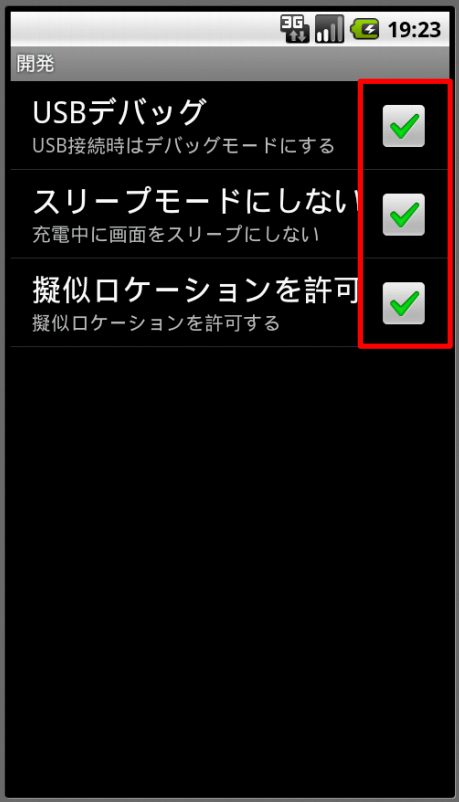
続いて、開発を選択します。
すべてにチェックを入れます。疑似ロケーションを許可は、GPSアプリとかを作る場合のみほしい機能なので、特に入れなくてもいいですが、とりあえず。疑似ロケーションとは、東京にいながらにして京都にいるかのごとくGPSデータをいじったりすることです。
これで、Eclipseから実機に開発中のアプリをインストールする準備ができました。

なお、開発中以外は全部外しておくことをお勧めします。変なアプリをインストールされても私は知りません!

Chapter01:LinearLayoutの特徴

では、ようやくレイアウトXMLの説明に入ります。
今回は、サンプルアプリのChapter01でLinearLayoutの説明をします。

まだプロジェクトをインポートしていない場合は、こちらの記事を先に読んでください。

先に説明しておきますが、Androidのレイアウト要素には、以下の種類があります。

  • LinearLayout(リニアレイアウト)
  • RelativeLayout(リレーティブレイアウト)
  • FrameLayout(フレームレイアウト)
  • TableLayout(テーブルレイアウト)
  • AbsoluteLayout(現在は非推奨)

5種類ありますが、ほとんどの場合、上の3種類のみを使います。特に、LinearLayoutとRelativeLayoutを多用するので、この講座(基本編)では、この2つに絞って説明します。

そもそもLayoutって何?

Layoutは、HTML的に平たくいうと、divタグみたいなものです。入れ物です。TableLayoutはtableタグみたいなものですが。しかし、名前が違うのでそれぞれ特徴があります。しかしここでは言及しません。

LinearLayoutって何?

LinearLayoutは、もっとも素直なレイアウトで、左上詰めで子要素を配置するレイアウトです。一番多用するレイアウトです。子要素を配置する方向(縦か横か)を決めることができます。
Chapter01の画面は以下のようになっています。
この画面はLinearLayoutというレイアウトとTextViewというウィジェットで構成されています。パッと見では、全部縦方向に配置されているようにみえるかもしれませんので、視覚的に表してみます。青い枠のLinearLayoutの中に、赤い枠のLinearLayoutが入っています。赤い枠のほうは、横方向にレイアウトを配置しています。

コードレビュー

では、レイアウトのソースコードを見てみましょう。
Sample01プロジェクトの、/res/layout/chapter01.xml を開いて下さい。

注目するべきところは、LinearLayoutという要素の、android:orientationという属性です。それ以外は単にテキストを表示しているだけなので、まぁそんなものだと思っておいてください。

ちなみに、layout_widthとlayout_heightは要素の横幅、縦幅を表します。fill_parentだと親要素分全部使います。つまり、width: 100%;です。wrap_contentは、必要な分だけ使うという指定です。数値でも指定可能ですが、ひとまずはこの2つを押さえましょう。また、match_parentというのもあります。2.2以降では、fill_parentではなく、match_parentを使いますが、Xperiaがある限りは、fill_parentを使わざるをえません…。

<?xml version="1.0" encoding="utf-8"?>
<LinearLayout
    xmlns:android="http://schemas.android.com/apk/res/android"
    android:orientation="vertical"
    android:layout_width="fill_parent"
    android:layout_height="fill_parent">
    <!-- ここから垂直方向 -->
    <TextView
        android:layout_width="wrap_content"
        android:layout_height="wrap_content"
        android:text="@string/chapter01_linearlayout_vertical" />
    <TextView
        android:layout_width="wrap_content"
        android:layout_height="wrap_content"
        android:text="@string/chapter01_test_1" />
    <TextView
        android:layout_width="wrap_content"
        android:layout_height="wrap_content"
        android:text="@string/chapter01_test_2" />
    <TextView
        android:layout_width="wrap_content"
        android:layout_height="wrap_content"
        android:text="@string/chapter01_test_3" />
    <TextView
        android:layout_width="wrap_content"
        android:layout_height="wrap_content"
        android:text="@string/chapter01_linearlayout_horizontal" />
    <!-- ここから水平方向 -->
    <LinearLayout
        android:orientation="horizontal"
        android:layout_width="fill_parent"
        android:layout_height="wrap_content">
        <TextView
            android:layout_width="wrap_content"
            android:layout_height="wrap_content"
            android:text="@string/chapter01_test_4" />
        <TextView
            android:layout_width="wrap_content"
            android:layout_height="wrap_content"
            android:text="@string/chapter01_test_5" />
        <TextView
            android:layout_width="wrap_content"
            android:layout_height="wrap_content"
            android:text="@string/chapter01_test_6" />
    </LinearLayout>
    <!-- ここまで水平方向 -->
    <!-- また垂直方向 -->
    <TextView
        android:layout_width="wrap_content"
        android:layout_height="wrap_content"
        android:text="@string/chapter01_test_7" />
    <TextView
        android:layout_width="wrap_content"
        android:layout_height="wrap_content"
        android:text="@string/chapter01_test_8" />
    <TextView
        android:layout_width="wrap_content"
        android:layout_height="wrap_content"
        android:text="@string/chapter01_test_9" />
</LinearLayout>
orientation属性は、子要素の配置方向を決定します。

  • vertical・・・縦方向
  • horizontal・・・横方向

途中に存在するLinearLayoutも、親要素のLinearLayoutの子要素なので、あくまで縦方向に配置される要素として置いてあります。しかし、その中身は横方向に配置されています。

単純な例でLinearLayoutを紹介しましたが、複雑なレイアウトも、ほとんどはLinearLayoutを入れ子にしたレイアウトです。縦方向の途中の要素で横方向のレイアウトが必要になったら、LinearLayoutを追加して、orientationをhorizontalに設定して配置。それを抜けたらまた縦方向。もし横方向内で縦のレイアウトが使いたい場合は、さらにLinearLayoutを入れ子にして…という感じです。

divタグの中にdivタグを入れて、さらにdivタグを入れて…というのに似ています。

LinearLayoutの特徴が分かっていただけましたでしょうか?
次回は、RelativeLayoutの特徴を説明します。

2011年9月28日水曜日

スクリーンショットを撮る方法(DDMS)

ふと記事を書いている途中で思って、これこそが重要じゃないかと気づきました。スクリーンショットですね。せっかくデザインしても、実際に端末見せたり、PCでエミュレータ起動して、「こんな感じで」とかするのはあまりにも無謀です。できるけど面倒臭いし、プレゼンとかに載せられない。

ということで、スクリーンショットを撮る方法を書きます。

スクリーンショットを撮るのは簡単です。DDMSです。
DDMSって何ぞ?という人は、この記事をまず読んでください。

では、DDMSのパースペクティブを開きます。
左上のデバイスの部分にカメラみたいなマークがありますね。これを押します。

 押したら、スクリーンショットのウィンドウが出てきます。
上にメニューがあります。
  • リフレッシュ・・・スクリーンショットを現在の画面で撮りなおす
  • Rotate・・・スクリーンショットを回転させる
  • 保管・・・保存する
  • コピー・・・クリップボードにコピーする
  • 終了・・・ウィンドウを閉じる

デザインが終わったら、これでスクリーンショットを撮って、スライドに載せたり、Android Marketにアップしたりしましょう。

Eclipseでプロジェクトをインポートする(zipのまま)

AndroidのレイアウトのXMLの講義を行うに当たって、サンプルプロジェクトを作成しています。それを元に、記事を書いていきたいなぁと思っているのですが、今回はそのサンプルプロジェクトをEclipseのワークスペースにインポートする方法をご紹介します。

サンプルは、githubにアップしています。
https://github.com/patorash/AndroidLayoutXmlStudy-Sample01

gitを使ってプロジェクトを読み込むこともできますが、今回はzip形式で読み込む方法です。まず、ダウンロードボタンを押します。
すると、ポップアップが出てくるので、Download .zip のほうを選択します。すると、zipでダウンロードされます。インポートはzipのままでもできますから、解凍しないでください。

ダウンロードしたプロジェクトを、Eclipseにインポートします。ファイルより、インポートを選択します。

既存プロジェクトをワークスペースへを選択し、次へを押します。
 さきほどダウンロードしたzipファイルを指定します。アーカイブ・ファイルの選択を選び、参照を押して、zipを選びます。すると、解析されて、プロジェクトが出てきます。出てきたのを確認したら、完了ボタンを押しましょう。
 なんかビックリマークがでてます。これは、プロジェクトの状態がおかしいぞ!というマークです(自分もよくわかってないですが)。直しましょう。
 プロジェクトより、クリーンを選択します。プロジェクトを一度綺麗にしてビルドしなおすという作業をしてくれます。プロジェクト単位で指定もできますし、全プロジェクトをすることもできます。お好きなほうを選びましょう。
 クリーンが終わると、ビックリマークが消えました。これでOKです。

以上で、サンプルプロジェクトのインポートが終わりました。
ようやく次回より、レイアウトXMLの説明ができそうです。

2011年9月27日火曜日

Eclipseでデバッグするための方法の基礎(DDMS)

さて、WebデザイナーのためのレイアウトXML講座と言っているのに、未だにレイアウトXMLの話に入らなくてごめんなさい。もう心折れかけているかもしれませんが、もうしばらく辛抱してください。これを説明してからじゃないと、完全に心が折られると思ったのです。すみません。

Androidを使っている人だったら見たことがあるかもしれませんが、アプリはエラーで強制終了することがあります。こんな画面です。


レイアウトを書いて、いざ確認しようと思ったら、いつか遭遇してしまう画面です。悲しいですね。一体なにがいけないの?プログラムがわからないとやっぱりダメなの?と、困惑することでしょう。画面を見ていても、エラーの原因はわかりません。デバッグ画面を見なければ。

ということで、Eclipseのデバッグ画面を見る方法です。
Androidの場合、Javaのデバッグ画面とは別にDDMSというものがあります。DDMSとはDalvik Debug Monitor Serviceの略です。AndroidはJavaのVMではなく、Dalvik VMというものの上で動いているので、それをデバッグ用にモニタするものです。

では、早速表示させてみましょう。 Eclipseの右上のほうには、パースペクティブというものがあります。今、Eclipseで扱っている機能を表してる感じです。Androidのコーディングをする場合はJavaのパースペクティブを表示しています。赤枠のところを押して、新しくパースペクティブを開きましょう。
すると、候補が色々出てきます。DDMSを選択します。なかったら、その他を押して、そこからDDMSを選択します。
すると、Javaのパースペクティブのボタンの横にDDMSというものができて、パースペクティブが切り替わり、DDMS用の画面が出てきます。以下のような感じです。
エミュレータや端末をデバッグモードでつないでいたら、左上のほうに以下のような感じで表示されているはずです。表示される情報は1端末ごとなので、繋がっている端末を選択しましょう(エミュレータでもOK)。
DDMSは多機能で私も全部使いこなしているわけではないですし、デザイナーの方にもDDMSの詳しい情報は今のところ必要ないと思うので、エラーの原因を調べるヒントを見る方法を説明します。それは、ログです。

アプリが強制終了したら、DDMSにログが出力されます(設定次第では出力されませんが、普通は開発中は出力されます)。 Devicesでデバッグ用の端末を選択したあと、下のほうにあるLogCatを見ます。いろんなログが出ていると思いますが、エラーの原因を見る方法は簡単です。

ログの表示レベルをEにします。右側にあるログレベルを表すアルファベットをクリックすると、そのログレベル以上のログしか表示されなくなります。
エラーでアプリが落ちるときは、Eレベルのログになります。直近のエラーなので、一番下のログを見れば、だいたいわかるというわけです。見たことがあるログだったら、エラーの原因がわかりますし、わからない場合はそのエラーの原因でググれば、大体の情報はネット上にあります。

今回は、AndroidManifest.xmlに指定されたActivityを定義し忘れていたので、ActivityNotFoundExceptionという例外が出ているというメッセージでした(もちろんわざとですよ!)。 このAndroidManifestにActivityの定義をし忘れるというのは、慣れてても時々やってしまうので、覚えておくといいと思います。本のサンプルを作っていると、定義をはしょられてて、DDMSを見て気づくことが結構あります。

2011年9月26日月曜日

Eclipse Android用Javaフォーマッタのインポートを行う

 GoogleはAndroidのソースに関して、コーディングルールを設けています。
 Eclipseだと、ctrl + shift + F(Macだとcommand + shift + F)で、Javaのコードをフォーマットしてくれるのですが、デフォルトのままだとAndroid用のフォーマットではありません。 EclipseにAndroid用のフォーマットを記憶させるために、以下の作業をしましょう。

 まず、以下のXMLをファイルとして保存します。
(本来は、Androidのソースコードが公開されているhttp://android.git.kernel.orgに置いてあるのですが、2011/09/26現在、不正な攻撃を受けたためにアクセスできないようになっていますので、こちらでコピーを公開しています。その点をご容赦ください)

<?xml version="1.0" encoding="UTF-8"?>
<profiles version="10">
<profile name="Android" version="10">
<setting id="org.eclipse.jdt.core.formatter.align_type_members_on_columns" value="false"/>
<setting id="org.eclipse.jdt.core.formatter.alignment_for_arguments_in_allocation_expression" value="16"/>
<setting id="org.eclipse.jdt.core.formatter.alignment_for_arguments_in_enum_constant" value="16"/>
<setting id="org.eclipse.jdt.core.formatter.alignment_for_arguments_in_explicit_constructor_call" value="16"/>
<setting id="org.eclipse.jdt.core.formatter.alignment_for_arguments_in_method_invocation" value="16"/>
<setting id="org.eclipse.jdt.core.formatter.alignment_for_arguments_in_qualified_allocation_expression" value="16"/>
<setting id="org.eclipse.jdt.core.formatter.alignment_for_assignment" value="0"/>
<setting id="org.eclipse.jdt.core.formatter.alignment_for_binary_expression" value="16"/>
<setting id="org.eclipse.jdt.core.formatter.alignment_for_compact_if" value="16"/>
<setting id="org.eclipse.jdt.core.formatter.alignment_for_conditional_expression" value="80"/>
<setting id="org.eclipse.jdt.core.formatter.alignment_for_enum_constants" value="0"/>
<setting id="org.eclipse.jdt.core.formatter.alignment_for_expressions_in_array_initializer" value="16"/>
<setting id="org.eclipse.jdt.core.formatter.alignment_for_multiple_fields" value="16"/>
<setting id="org.eclipse.jdt.core.formatter.alignment_for_parameters_in_constructor_declaration" value="16"/>
<setting id="org.eclipse.jdt.core.formatter.alignment_for_parameters_in_method_declaration" value="16"/>
<setting id="org.eclipse.jdt.core.formatter.alignment_for_selector_in_method_invocation" value="16"/>
<setting id="org.eclipse.jdt.core.formatter.alignment_for_superclass_in_type_declaration" value="16"/>
<setting id="org.eclipse.jdt.core.formatter.alignment_for_superinterfaces_in_enum_declaration" value="16"/>
<setting id="org.eclipse.jdt.core.formatter.alignment_for_superinterfaces_in_type_declaration" value="16"/>
<setting id="org.eclipse.jdt.core.formatter.alignment_for_throws_clause_in_constructor_declaration" value="16"/>
<setting id="org.eclipse.jdt.core.formatter.alignment_for_throws_clause_in_method_declaration" value="16"/>
<setting id="org.eclipse.jdt.core.formatter.blank_lines_after_imports" value="1"/>
<setting id="org.eclipse.jdt.core.formatter.blank_lines_after_package" value="1"/>
<setting id="org.eclipse.jdt.core.formatter.blank_lines_before_field" value="1"/>
<setting id="org.eclipse.jdt.core.formatter.blank_lines_before_first_class_body_declaration" value="0"/>
<setting id="org.eclipse.jdt.core.formatter.blank_lines_before_imports" value="1"/>
<setting id="org.eclipse.jdt.core.formatter.blank_lines_before_member_type" value="1"/>
<setting id="org.eclipse.jdt.core.formatter.blank_lines_before_method" value="1"/>
<setting id="org.eclipse.jdt.core.formatter.blank_lines_before_new_chunk" value="1"/>
<setting id="org.eclipse.jdt.core.formatter.blank_lines_before_package" value="1"/>
<setting id="org.eclipse.jdt.core.formatter.blank_lines_between_type_declarations" value="1"/>
<setting id="org.eclipse.jdt.core.formatter.brace_position_for_annotation_type_declaration" value="end_of_line"/>
<setting id="org.eclipse.jdt.core.formatter.brace_position_for_anonymous_type_declaration" value="end_of_line"/>
<setting id="org.eclipse.jdt.core.formatter.brace_position_for_array_initializer" value="end_of_line"/>
<setting id="org.eclipse.jdt.core.formatter.brace_position_for_block" value="end_of_line"/>
<setting id="org.eclipse.jdt.core.formatter.brace_position_for_block_in_case" value="end_of_line"/>
<setting id="org.eclipse.jdt.core.formatter.brace_position_for_constructor_declaration" value="end_of_line"/>
<setting id="org.eclipse.jdt.core.formatter.brace_position_for_enum_constant" value="end_of_line"/>
<setting id="org.eclipse.jdt.core.formatter.brace_position_for_enum_declaration" value="end_of_line"/>
<setting id="org.eclipse.jdt.core.formatter.brace_position_for_method_declaration" value="end_of_line"/>
<setting id="org.eclipse.jdt.core.formatter.brace_position_for_switch" value="end_of_line"/>
<setting id="org.eclipse.jdt.core.formatter.brace_position_for_type_declaration" value="end_of_line"/>
<setting id="org.eclipse.jdt.core.formatter.comment.clear_blank_lines" value="true"/>
<setting id="org.eclipse.jdt.core.formatter.comment.format_comments" value="true"/>
<setting id="org.eclipse.jdt.core.formatter.comment.format_header" value="false"/>
<setting id="org.eclipse.jdt.core.formatter.comment.format_html" value="true"/>
<setting id="org.eclipse.jdt.core.formatter.comment.format_source_code" value="true"/>
<setting id="org.eclipse.jdt.core.formatter.comment.indent_parameter_description" value="true"/>
<setting id="org.eclipse.jdt.core.formatter.comment.indent_root_tags" value="true"/>
<setting id="org.eclipse.jdt.core.formatter.comment.insert_new_line_before_root_tags" value="insert"/>
<setting id="org.eclipse.jdt.core.formatter.comment.insert_new_line_for_parameter" value="do not insert"/>
<setting id="org.eclipse.jdt.core.formatter.comment.line_length" value="80"/>
<setting id="org.eclipse.jdt.core.formatter.compact_else_if" value="true"/>
<setting id="org.eclipse.jdt.core.formatter.continuation_indentation" value="2"/>
<setting id="org.eclipse.jdt.core.formatter.continuation_indentation_for_array_initializer" value="2"/>
<setting id="org.eclipse.jdt.core.formatter.format_guardian_clause_on_one_line" value="false"/>
<setting id="org.eclipse.jdt.core.formatter.indent_body_declarations_compare_to_annotation_declaration_header" value="true"/>
<setting id="org.eclipse.jdt.core.formatter.indent_body_declarations_compare_to_enum_constant_header" value="true"/>
<setting id="org.eclipse.jdt.core.formatter.indent_body_declarations_compare_to_enum_declaration_header" value="true"/>
<setting id="org.eclipse.jdt.core.formatter.indent_body_declarations_compare_to_type_header" value="true"/>
<setting id="org.eclipse.jdt.core.formatter.indent_breaks_compare_to_cases" value="true"/>
<setting id="org.eclipse.jdt.core.formatter.indent_empty_lines" value="false"/>
<setting id="org.eclipse.jdt.core.formatter.indent_statements_compare_to_block" value="true"/>
<setting id="org.eclipse.jdt.core.formatter.indent_statements_compare_to_body" value="true"/>
<setting id="org.eclipse.jdt.core.formatter.indent_switchstatements_compare_to_cases" value="true"/>
<setting id="org.eclipse.jdt.core.formatter.indent_switchstatements_compare_to_switch" value="true"/>
<setting id="org.eclipse.jdt.core.formatter.indentation.size" value="4"/>
<setting id="org.eclipse.jdt.core.formatter.insert_new_line_after_annotation" value="insert"/>
<setting id="org.eclipse.jdt.core.formatter.insert_new_line_after_opening_brace_in_array_initializer" value="insert"/>
<setting id="org.eclipse.jdt.core.formatter.insert_new_line_at_end_of_file_if_missing" value="insert"/>
<setting id="org.eclipse.jdt.core.formatter.insert_new_line_before_catch_in_try_statement" value="do not insert"/>
<setting id="org.eclipse.jdt.core.formatter.insert_new_line_before_closing_brace_in_array_initializer" value="insert"/>
<setting id="org.eclipse.jdt.core.formatter.insert_new_line_before_else_in_if_statement" value="do not insert"/>
<setting id="org.eclipse.jdt.core.formatter.insert_new_line_before_finally_in_try_statement" value="do not insert"/>
<setting id="org.eclipse.jdt.core.formatter.insert_new_line_before_while_in_do_statement" value="do not insert"/>
<setting id="org.eclipse.jdt.core.formatter.insert_new_line_in_empty_annotation_declaration" value="insert"/>
<setting id="org.eclipse.jdt.core.formatter.insert_new_line_in_empty_anonymous_type_declaration" value="insert"/>
<setting id="org.eclipse.jdt.core.formatter.insert_new_line_in_empty_block" value="insert"/>
<setting id="org.eclipse.jdt.core.formatter.insert_new_line_in_empty_enum_constant" value="insert"/>
<setting id="org.eclipse.jdt.core.formatter.insert_new_line_in_empty_enum_declaration" value="insert"/>
<setting id="org.eclipse.jdt.core.formatter.insert_new_line_in_empty_method_body" value="insert"/>
<setting id="org.eclipse.jdt.core.formatter.insert_new_line_in_empty_type_declaration" value="insert"/>
<setting id="org.eclipse.jdt.core.formatter.insert_space_after_and_in_type_parameter" value="insert"/>
<setting id="org.eclipse.jdt.core.formatter.insert_space_after_assignment_operator" value="insert"/>
<setting id="org.eclipse.jdt.core.formatter.insert_space_after_at_in_annotation" value="do not insert"/>
<setting id="org.eclipse.jdt.core.formatter.insert_space_after_at_in_annotation_type_declaration" value="do not insert"/>
<setting id="org.eclipse.jdt.core.formatter.insert_space_after_binary_operator" value="insert"/>
<setting id="org.eclipse.jdt.core.formatter.insert_space_after_closing_angle_bracket_in_type_arguments" value="insert"/>
<setting id="org.eclipse.jdt.core.formatter.insert_space_after_closing_angle_bracket_in_type_parameters" value="insert"/>
<setting id="org.eclipse.jdt.core.formatter.insert_space_after_closing_brace_in_block" value="insert"/>
<setting id="org.eclipse.jdt.core.formatter.insert_space_after_closing_paren_in_cast" value="insert"/>
<setting id="org.eclipse.jdt.core.formatter.insert_space_after_colon_in_assert" value="insert"/>
<setting id="org.eclipse.jdt.core.formatter.insert_space_after_colon_in_case" value="insert"/>
<setting id="org.eclipse.jdt.core.formatter.insert_space_after_colon_in_conditional" value="insert"/>
<setting id="org.eclipse.jdt.core.formatter.insert_space_after_colon_in_for" value="insert"/>
<setting id="org.eclipse.jdt.core.formatter.insert_space_after_colon_in_labeled_statement" value="insert"/>
<setting id="org.eclipse.jdt.core.formatter.insert_space_after_comma_in_allocation_expression" value="insert"/>
<setting id="org.eclipse.jdt.core.formatter.insert_space_after_comma_in_annotation" value="insert"/>
<setting id="org.eclipse.jdt.core.formatter.insert_space_after_comma_in_array_initializer" value="insert"/>
<setting id="org.eclipse.jdt.core.formatter.insert_space_after_comma_in_constructor_declaration_parameters" value="insert"/>
<setting id="org.eclipse.jdt.core.formatter.insert_space_after_comma_in_constructor_declaration_throws" value="insert"/>
<setting id="org.eclipse.jdt.core.formatter.insert_space_after_comma_in_enum_constant_arguments" value="insert"/>
<setting id="org.eclipse.jdt.core.formatter.insert_space_after_comma_in_enum_declarations" value="insert"/>
<setting id="org.eclipse.jdt.core.formatter.insert_space_after_comma_in_explicitconstructorcall_arguments" value="insert"/>
<setting id="org.eclipse.jdt.core.formatter.insert_space_after_comma_in_for_increments" value="insert"/>
<setting id="org.eclipse.jdt.core.formatter.insert_space_after_comma_in_for_inits" value="insert"/>
<setting id="org.eclipse.jdt.core.formatter.insert_space_after_comma_in_method_declaration_parameters" value="insert"/>
<setting id="org.eclipse.jdt.core.formatter.insert_space_after_comma_in_method_declaration_throws" value="insert"/>
<setting id="org.eclipse.jdt.core.formatter.insert_space_after_comma_in_method_invocation_arguments" value="insert"/>
<setting id="org.eclipse.jdt.core.formatter.insert_space_after_comma_in_multiple_field_declarations" value="insert"/>
<setting id="org.eclipse.jdt.core.formatter.insert_space_after_comma_in_multiple_local_declarations" value="insert"/>
<setting id="org.eclipse.jdt.core.formatter.insert_space_after_comma_in_parameterized_type_reference" value="insert"/>
<setting id="org.eclipse.jdt.core.formatter.insert_space_after_comma_in_superinterfaces" value="insert"/>
<setting id="org.eclipse.jdt.core.formatter.insert_space_after_comma_in_type_arguments" value="insert"/>
<setting id="org.eclipse.jdt.core.formatter.insert_space_after_comma_in_type_parameters" value="insert"/>
<setting id="org.eclipse.jdt.core.formatter.insert_space_after_ellipsis" value="insert"/>
<setting id="org.eclipse.jdt.core.formatter.insert_space_after_opening_angle_bracket_in_parameterized_type_reference" value="do not insert"/>
<setting id="org.eclipse.jdt.core.formatter.insert_space_after_opening_angle_bracket_in_type_arguments" value="do not insert"/>
<setting id="org.eclipse.jdt.core.formatter.insert_space_after_opening_angle_bracket_in_type_parameters" value="do not insert"/>
<setting id="org.eclipse.jdt.core.formatter.insert_space_after_opening_brace_in_array_initializer" value="insert"/>
<setting id="org.eclipse.jdt.core.formatter.insert_space_after_opening_bracket_in_array_allocation_expression" value="do not insert"/>
<setting id="org.eclipse.jdt.core.formatter.insert_space_after_opening_bracket_in_array_reference" value="do not insert"/>
<setting id="org.eclipse.jdt.core.formatter.insert_space_after_opening_paren_in_annotation" value="do not insert"/>
<setting id="org.eclipse.jdt.core.formatter.insert_space_after_opening_paren_in_cast" value="do not insert"/>
<setting id="org.eclipse.jdt.core.formatter.insert_space_after_opening_paren_in_catch" value="do not insert"/>
<setting id="org.eclipse.jdt.core.formatter.insert_space_after_opening_paren_in_constructor_declaration" value="do not insert"/>
<setting id="org.eclipse.jdt.core.formatter.insert_space_after_opening_paren_in_enum_constant" value="do not insert"/>
<setting id="org.eclipse.jdt.core.formatter.insert_space_after_opening_paren_in_for" value="do not insert"/>
<setting id="org.eclipse.jdt.core.formatter.insert_space_after_opening_paren_in_if" value="do not insert"/>
<setting id="org.eclipse.jdt.core.formatter.insert_space_after_opening_paren_in_method_declaration" value="do not insert"/>
<setting id="org.eclipse.jdt.core.formatter.insert_space_after_opening_paren_in_method_invocation" value="do not insert"/>
<setting id="org.eclipse.jdt.core.formatter.insert_space_after_opening_paren_in_parenthesized_expression" value="do not insert"/>
<setting id="org.eclipse.jdt.core.formatter.insert_space_after_opening_paren_in_switch" value="do not insert"/>
<setting id="org.eclipse.jdt.core.formatter.insert_space_after_opening_paren_in_synchronized" value="do not insert"/>
<setting id="org.eclipse.jdt.core.formatter.insert_space_after_opening_paren_in_while" value="do not insert"/>
<setting id="org.eclipse.jdt.core.formatter.insert_space_after_postfix_operator" value="do not insert"/>
<setting id="org.eclipse.jdt.core.formatter.insert_space_after_prefix_operator" value="do not insert"/>
<setting id="org.eclipse.jdt.core.formatter.insert_space_after_question_in_conditional" value="insert"/>
<setting id="org.eclipse.jdt.core.formatter.insert_space_after_question_in_wildcard" value="do not insert"/>
<setting id="org.eclipse.jdt.core.formatter.insert_space_after_semicolon_in_for" value="insert"/>
<setting id="org.eclipse.jdt.core.formatter.insert_space_after_unary_operator" value="do not insert"/>
<setting id="org.eclipse.jdt.core.formatter.insert_space_before_and_in_type_parameter" value="insert"/>
<setting id="org.eclipse.jdt.core.formatter.insert_space_before_assignment_operator" value="insert"/>
<setting id="org.eclipse.jdt.core.formatter.insert_space_before_at_in_annotation_type_declaration" value="insert"/>
<setting id="org.eclipse.jdt.core.formatter.insert_space_before_binary_operator" value="insert"/>
<setting id="org.eclipse.jdt.core.formatter.insert_space_before_closing_angle_bracket_in_parameterized_type_reference" value="do not insert"/>
<setting id="org.eclipse.jdt.core.formatter.insert_space_before_closing_angle_bracket_in_type_arguments" value="do not insert"/>
<setting id="org.eclipse.jdt.core.formatter.insert_space_before_closing_angle_bracket_in_type_parameters" value="do not insert"/>
<setting id="org.eclipse.jdt.core.formatter.insert_space_before_closing_brace_in_array_initializer" value="insert"/>
<setting id="org.eclipse.jdt.core.formatter.insert_space_before_closing_bracket_in_array_allocation_expression" value="do not insert"/>
<setting id="org.eclipse.jdt.core.formatter.insert_space_before_closing_bracket_in_array_reference" value="do not insert"/>
<setting id="org.eclipse.jdt.core.formatter.insert_space_before_closing_paren_in_annotation" value="do not insert"/>
<setting id="org.eclipse.jdt.core.formatter.insert_space_before_closing_paren_in_cast" value="do not insert"/>
<setting id="org.eclipse.jdt.core.formatter.insert_space_before_closing_paren_in_catch" value="do not insert"/>
<setting id="org.eclipse.jdt.core.formatter.insert_space_before_closing_paren_in_constructor_declaration" value="do not insert"/>
<setting id="org.eclipse.jdt.core.formatter.insert_space_before_closing_paren_in_enum_constant" value="do not insert"/>
<setting id="org.eclipse.jdt.core.formatter.insert_space_before_closing_paren_in_for" value="do not insert"/>
<setting id="org.eclipse.jdt.core.formatter.insert_space_before_closing_paren_in_if" value="do not insert"/>
<setting id="org.eclipse.jdt.core.formatter.insert_space_before_closing_paren_in_method_declaration" value="do not insert"/>
<setting id="org.eclipse.jdt.core.formatter.insert_space_before_closing_paren_in_method_invocation" value="do not insert"/>
<setting id="org.eclipse.jdt.core.formatter.insert_space_before_closing_paren_in_parenthesized_expression" value="do not insert"/>
<setting id="org.eclipse.jdt.core.formatter.insert_space_before_closing_paren_in_switch" value="do not insert"/>
<setting id="org.eclipse.jdt.core.formatter.insert_space_before_closing_paren_in_synchronized" value="do not insert"/>
<setting id="org.eclipse.jdt.core.formatter.insert_space_before_closing_paren_in_while" value="do not insert"/>
<setting id="org.eclipse.jdt.core.formatter.insert_space_before_colon_in_assert" value="insert"/>
<setting id="org.eclipse.jdt.core.formatter.insert_space_before_colon_in_case" value="do not insert"/>
<setting id="org.eclipse.jdt.core.formatter.insert_space_before_colon_in_conditional" value="insert"/>
<setting id="org.eclipse.jdt.core.formatter.insert_space_before_colon_in_default" value="do not insert"/>
<setting id="org.eclipse.jdt.core.formatter.insert_space_before_colon_in_for" value="insert"/>
<setting id="org.eclipse.jdt.core.formatter.insert_space_before_colon_in_labeled_statement" value="do not insert"/>
<setting id="org.eclipse.jdt.core.formatter.insert_space_before_comma_in_allocation_expression" value="do not insert"/>
<setting id="org.eclipse.jdt.core.formatter.insert_space_before_comma_in_annotation" value="do not insert"/>
<setting id="org.eclipse.jdt.core.formatter.insert_space_before_comma_in_array_initializer" value="do not insert"/>
<setting id="org.eclipse.jdt.core.formatter.insert_space_before_comma_in_constructor_declaration_parameters" value="do not insert"/>
<setting id="org.eclipse.jdt.core.formatter.insert_space_before_comma_in_constructor_declaration_throws" value="do not insert"/>
<setting id="org.eclipse.jdt.core.formatter.insert_space_before_comma_in_enum_constant_arguments" value="do not insert"/>
<setting id="org.eclipse.jdt.core.formatter.insert_space_before_comma_in_enum_declarations" value="do not insert"/>
<setting id="org.eclipse.jdt.core.formatter.insert_space_before_comma_in_explicitconstructorcall_arguments" value="do not insert"/>
<setting id="org.eclipse.jdt.core.formatter.insert_space_before_comma_in_for_increments" value="do not insert"/>
<setting id="org.eclipse.jdt.core.formatter.insert_space_before_comma_in_for_inits" value="do not insert"/>
<setting id="org.eclipse.jdt.core.formatter.insert_space_before_comma_in_method_declaration_parameters" value="do not insert"/>
<setting id="org.eclipse.jdt.core.formatter.insert_space_before_comma_in_method_declaration_throws" value="do not insert"/>
<setting id="org.eclipse.jdt.core.formatter.insert_space_before_comma_in_method_invocation_arguments" value="do not insert"/>
<setting id="org.eclipse.jdt.core.formatter.insert_space_before_comma_in_multiple_field_declarations" value="do not insert"/>
<setting id="org.eclipse.jdt.core.formatter.insert_space_before_comma_in_multiple_local_declarations" value="do not insert"/>
<setting id="org.eclipse.jdt.core.formatter.insert_space_before_comma_in_parameterized_type_reference" value="do not insert"/>
<setting id="org.eclipse.jdt.core.formatter.insert_space_before_comma_in_superinterfaces" value="do not insert"/>
<setting id="org.eclipse.jdt.core.formatter.insert_space_before_comma_in_type_arguments" value="do not insert"/>
<setting id="org.eclipse.jdt.core.formatter.insert_space_before_comma_in_type_parameters" value="do not insert"/>
<setting id="org.eclipse.jdt.core.formatter.insert_space_before_ellipsis" value="do not insert"/>
<setting id="org.eclipse.jdt.core.formatter.insert_space_before_opening_angle_bracket_in_parameterized_type_reference" value="do not insert"/>
<setting id="org.eclipse.jdt.core.formatter.insert_space_before_opening_angle_bracket_in_type_arguments" value="do not insert"/>
<setting id="org.eclipse.jdt.core.formatter.insert_space_before_opening_angle_bracket_in_type_parameters" value="do not insert"/>
<setting id="org.eclipse.jdt.core.formatter.insert_space_before_opening_brace_in_annotation_type_declaration" value="insert"/>
<setting id="org.eclipse.jdt.core.formatter.insert_space_before_opening_brace_in_anonymous_type_declaration" value="insert"/>
<setting id="org.eclipse.jdt.core.formatter.insert_space_before_opening_brace_in_array_initializer" value="insert"/>
<setting id="org.eclipse.jdt.core.formatter.insert_space_before_opening_brace_in_block" value="insert"/>
<setting id="org.eclipse.jdt.core.formatter.insert_space_before_opening_brace_in_constructor_declaration" value="insert"/>
<setting id="org.eclipse.jdt.core.formatter.insert_space_before_opening_brace_in_enum_constant" value="insert"/>
<setting id="org.eclipse.jdt.core.formatter.insert_space_before_opening_brace_in_enum_declaration" value="insert"/>
<setting id="org.eclipse.jdt.core.formatter.insert_space_before_opening_brace_in_method_declaration" value="insert"/>
<setting id="org.eclipse.jdt.core.formatter.insert_space_before_opening_brace_in_switch" value="insert"/>
<setting id="org.eclipse.jdt.core.formatter.insert_space_before_opening_brace_in_type_declaration" value="insert"/>
<setting id="org.eclipse.jdt.core.formatter.insert_space_before_opening_bracket_in_array_allocation_expression" value="do not insert"/>
<setting id="org.eclipse.jdt.core.formatter.insert_space_before_opening_bracket_in_array_reference" value="do not insert"/>
<setting id="org.eclipse.jdt.core.formatter.insert_space_before_opening_bracket_in_array_type_reference" value="do not insert"/>
<setting id="org.eclipse.jdt.core.formatter.insert_space_before_opening_paren_in_annotation" value="do not insert"/>
<setting id="org.eclipse.jdt.core.formatter.insert_space_before_opening_paren_in_annotation_type_member_declaration" value="do not insert"/>
<setting id="org.eclipse.jdt.core.formatter.insert_space_before_opening_paren_in_catch" value="insert"/>
<setting id="org.eclipse.jdt.core.formatter.insert_space_before_opening_paren_in_constructor_declaration" value="do not insert"/>
<setting id="org.eclipse.jdt.core.formatter.insert_space_before_opening_paren_in_enum_constant" value="do not insert"/>
<setting id="org.eclipse.jdt.core.formatter.insert_space_before_opening_paren_in_for" value="insert"/>
<setting id="org.eclipse.jdt.core.formatter.insert_space_before_opening_paren_in_if" value="insert"/>
<setting id="org.eclipse.jdt.core.formatter.insert_space_before_opening_paren_in_method_declaration" value="do not insert"/>
<setting id="org.eclipse.jdt.core.formatter.insert_space_before_opening_paren_in_method_invocation" value="do not insert"/>
<setting id="org.eclipse.jdt.core.formatter.insert_space_before_opening_paren_in_parenthesized_expression" value="do not insert"/>
<setting id="org.eclipse.jdt.core.formatter.insert_space_before_opening_paren_in_switch" value="insert"/>
<setting id="org.eclipse.jdt.core.formatter.insert_space_before_opening_paren_in_synchronized" value="insert"/>
<setting id="org.eclipse.jdt.core.formatter.insert_space_before_opening_paren_in_while" value="insert"/>
<setting id="org.eclipse.jdt.core.formatter.insert_space_before_parenthesized_expression_in_return" value="insert"/>
<setting id="org.eclipse.jdt.core.formatter.insert_space_before_postfix_operator" value="do not insert"/>
<setting id="org.eclipse.jdt.core.formatter.insert_space_before_prefix_operator" value="do not insert"/>
<setting id="org.eclipse.jdt.core.formatter.insert_space_before_question_in_conditional" value="insert"/>
<setting id="org.eclipse.jdt.core.formatter.insert_space_before_question_in_wildcard" value="do not insert"/>
<setting id="org.eclipse.jdt.core.formatter.insert_space_before_semicolon" value="do not insert"/>
<setting id="org.eclipse.jdt.core.formatter.insert_space_before_semicolon_in_for" value="do not insert"/>
<setting id="org.eclipse.jdt.core.formatter.insert_space_before_unary_operator" value="do not insert"/>
<setting id="org.eclipse.jdt.core.formatter.insert_space_between_brackets_in_array_type_reference" value="do not insert"/>
<setting id="org.eclipse.jdt.core.formatter.insert_space_between_empty_braces_in_array_initializer" value="do not insert"/>
<setting id="org.eclipse.jdt.core.formatter.insert_space_between_empty_brackets_in_array_allocation_expression" value="do not insert"/>
<setting id="org.eclipse.jdt.core.formatter.insert_space_between_empty_parens_in_annotation_type_member_declaration" value="do not insert"/>
<setting id="org.eclipse.jdt.core.formatter.insert_space_between_empty_parens_in_constructor_declaration" value="do not insert"/>
<setting id="org.eclipse.jdt.core.formatter.insert_space_between_empty_parens_in_enum_constant" value="do not insert"/>
<setting id="org.eclipse.jdt.core.formatter.insert_space_between_empty_parens_in_method_declaration" value="do not insert"/>
<setting id="org.eclipse.jdt.core.formatter.insert_space_between_empty_parens_in_method_invocation" value="do not insert"/>
<setting id="org.eclipse.jdt.core.formatter.keep_else_statement_on_same_line" value="false"/>
<setting id="org.eclipse.jdt.core.formatter.keep_empty_array_initializer_on_one_line" value="false"/>
<setting id="org.eclipse.jdt.core.formatter.keep_imple_if_on_one_line" value="false"/>
<setting id="org.eclipse.jdt.core.formatter.keep_then_statement_on_same_line" value="false"/>
<setting id="org.eclipse.jdt.core.formatter.lineSplit" value="100"/>
<setting id="org.eclipse.jdt.core.formatter.number_of_blank_lines_at_beginning_of_method_body" value="0"/>
<setting id="org.eclipse.jdt.core.formatter.number_of_empty_lines_to_preserve" value="1"/>
<setting id="org.eclipse.jdt.core.formatter.put_empty_statement_on_new_line" value="true"/>
<setting id="org.eclipse.jdt.core.formatter.tabulation.char" value="space"/>
<setting id="org.eclipse.jdt.core.formatter.tabulation.size" value="4"/>
<setting id="org.eclipse.jdt.core.formatter.use_tabs_only_for_leading_indentations" value="false"/>
</profile>
</profiles>

次に、保存したxmlファイルをEclipseに読み込ませます。
設定画面を開いて(Winならばウィンドウ > 設定。Macならば、Eclipse > 環境設定)
Java > コード・スタイル > フォーマッター を開き、インポートを選択し、上記のxmlのファイルを読み込ませます。

そして、アクティブなプロファイルの箇所で、Androidを選択し、適用ボタンを押します。
これで、Eclipseのソースフォーマット機能を使ったときに、Androidのコーディングルールでフォーマットしてくれます。(変数名などは別です。あくまでフォーマットだけです)
以上です。